
Client-side tokens let you interact with the Paddle platform in frontend code, like webpages or mobile apps.
- They're intended only for client-side use.
- They're limited to opening checkouts, previewing prices, and previewing transactions.
- They're safe to publish and expose in your code.
They're required for working with Paddle.js.
Looking to integrate Paddle in your backend? Use the Paddle API or SDKs with API keys instead.
Use an AI agent
How it works
When you initialize Paddle.js, you must include a client-side token. Paddle uses your client-side token to identify your account and verify that you have permission to perform the requested action.
<script src="https://cdn.paddle.com/paddle/v2/paddle.js"></script><script type="text/javascript"> Paddle.Initialize({ token: "live_7d279f61a3499fed520f7cd8c08", // replace with a client-side token });</script>import { initializePaddle } from "@paddle/paddle-js";
const paddle = await initializePaddle({ token: "live_7d279f61a3499fed520f7cd8c08", // replace with a client-side token});Never use API keys with Paddle.js. API keys should be kept secret and never used in your frontend. Revoke keys immediately if they've been used in your frontend.
Sandbox vs live workspaces
Paddle has separate sandbox and live workspaces, each with their own set of client-side tokens. This separation helps you safely test your integration without affecting real customer data or transactions.
Sandbox client-side tokens
- Use these tokens as you build and test your integration.
- They only work in the sandbox environment where no real money is involved.
- Sandbox client-side tokens contain
test_. - Create a sandbox client-side token in the sandbox dashboard.
Live client-side tokens
- Use these tokens only when you're ready to process real transactions in your production app.
- They only work in the live environment where real money is involved.
- Live client-side tokens contain
live_. - Create a live client-side token in the live dashboard.
Format
Client-side tokens always follow a specific format:
- Always start with
test_orlive_to show the environment they're used for. - Contains a random string of 27 characters in length after the environment prefix.
^(test|live)_[a-zA-Z0-9]{27}$Create a client-side token
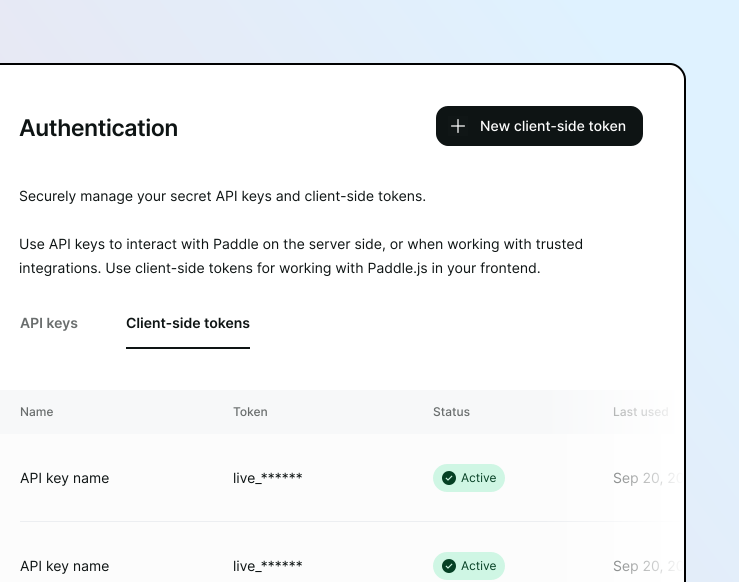
- Go to Paddle > Developer Tools > Authentication.
- Click the Client-side tokens tab.
- Click New client-side token .
- Enter a name and description for the client-side token.
- Click Save when you're done.
- Click the button next to the client-side token you want to use, then choose Copy .
You can use the /client-tokens endpoint to create a client-side token.
- Build a request that includes the
nameof your token to easily identify it. - You can optionally provide a
descriptionwith more information on the token's purpose or usage.
If successful, Paddle responds with a copy of the new client-side token entity. The returned token field is the client-side token you can use for authentication when intializing Paddle.js.
{ "name": "Pricing page integration", "description": "Used to display prices and open checkout within our pricing page on our marketing domain."}{ "data": { "id": "ctkn_01ghbkd0frb9k95cnhwd1bxpvk", "token": "live_7d279f61a3499fed520f7cd8c08", "name": "Pricing page integration", "description": "Used to display prices and open checkout on our pricing page on our marketing domain.", "status": "active", "created_at": "2025-06-26T14:36:14.695Z", "updated_at": "2025-06-26T14:36:14.695Z", "revoked_at": null }, "meta": { "request_id": "1681f87f-9c36-4557-a1da-bbb622afa0cc" }}Revoke a client-side token
Client-side tokens are safe to expose publicly in your frontend code. However, you may still want to revoke a token so it can no longer be used to authenticate Paddle.js.
Revoking a token is permanent. Check that your client-side token isn't used in production before revoking it to prevent disruption to customers.
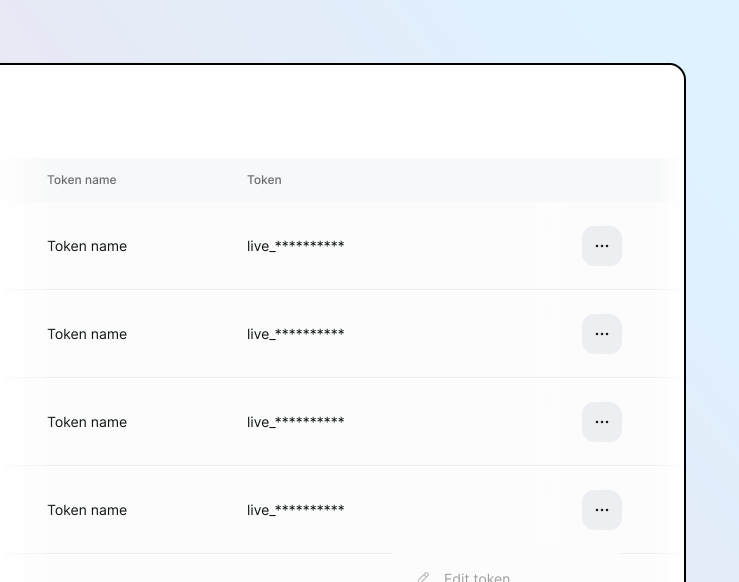
- Go to Paddle > Developer Tools > Authentication.
- Click the Client-side tokens tab.
- Click the button next to the token you want to revoke, then choose Revoke .
- Confirm you want to revoke the client-side token by filling in the confirmation box.
You can revoke a client-side token using the /client-tokens/{client_token_id} endpoint.
Build a request that includes a status field with a value of revoked.
If successful, Paddle responds with a copy of the revoked client-side token entity. It can no longer be used to authenticate.
{ "status": "revoked"}{ "data": { "id": "ctkn_01ghbkd0frb9k95cnhwd1bxpvk", "token": "live_7d279f61a3499fed520f7cd8c08", "name": "Pricing page integration", "description": "Used to display prices and open checkout within our pricing page on our marketing domain.", "status": "revoked", "created_at": "2025-06-26T14:36:14.695Z", "updated_at": "2025-07-03T15:14:12.435Z", "revoked_at": "2025-07-03T15:14:12.435Z" }, "meta": { "request_id": "1681f87f-9c36-4557-a1da-bbb622afa0cc" }}Events
client_token.created | Occurs when a client-side token is created. |
client_token.updated | Occurs when a client-side token is updated. |
client_token.revoked | Occurs when a client-side token is revoked. |